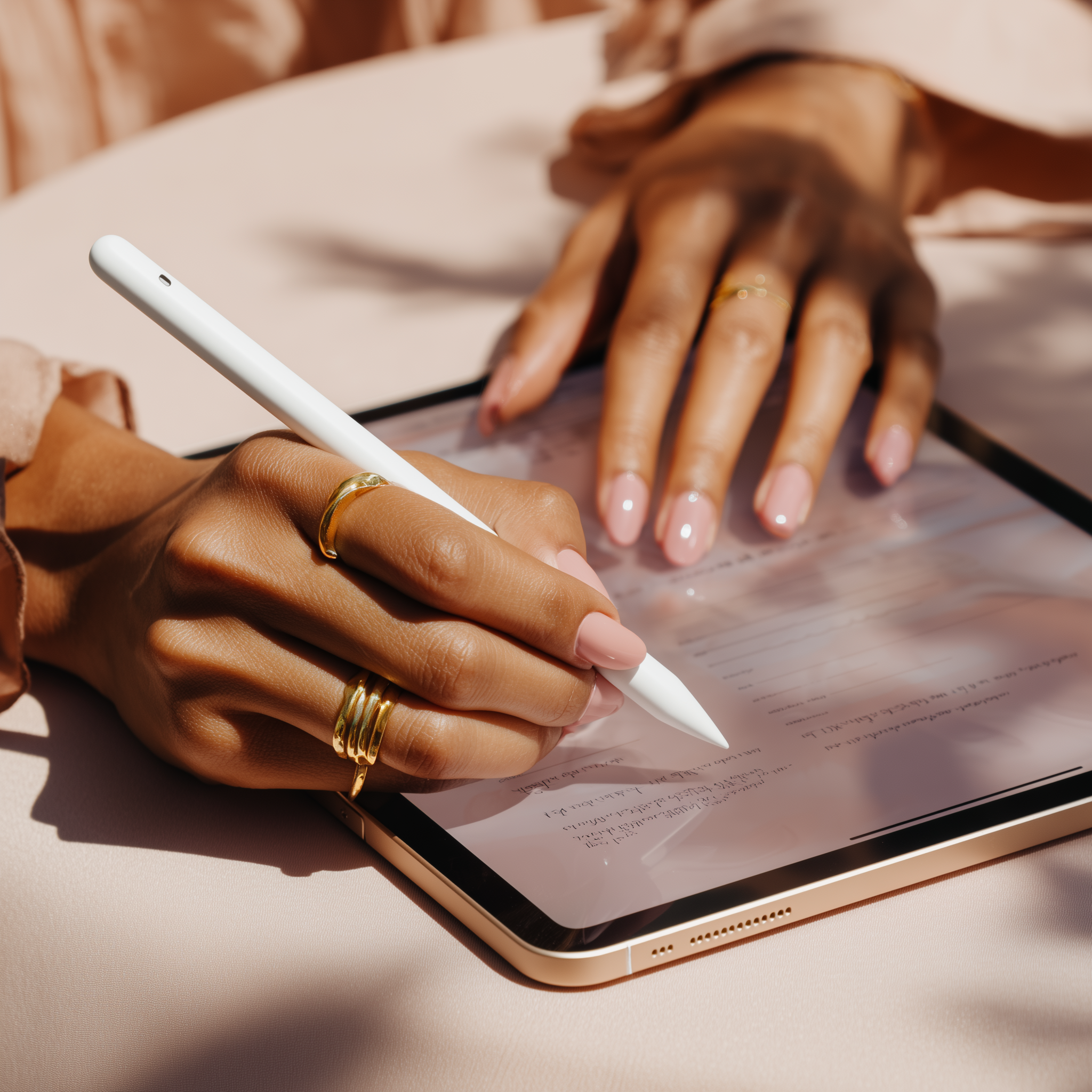

If you’ve been curious about digital planners but don’t know where to start, you’re in the right place. This beginner-friendly guide walks you through what a digital planner is, the apps and devices that work best, and exactly how to set one up—no tech genius required. Think of this as your cozy, step-by-step intro to iPad planning, Android tablet planning, and everything in between.
What is a digital planner?
A digital planner is a hyperlinked PDF (or template) you use on a tablet, phone, or computer inside a note-taking app. It looks like a paper planner tabs, calendars, weekly spreads, habit trackers but it’s interactive: you can tap tabs, search your notes, duplicate pages, add digital stickers, and back everything up to the cloud.
Why go digital? (Benefits vs. paper)
- Everything in one place: calendars, routines, health logs, meal plans, reading lists, budgeting—without carrying extra notebooks.
- Reusable & customizable: duplicate pages, copy spreads you love, and try new layouts without buying a new book.
- Searchable notes: OCR (text recognition) lets you search handwriting in many apps.
- Sync & backup: keep your planner across devices with iCloud, Google Drive, or Dropbox.
- Eco-friendly: no reprints, no wasted pages.
What you need to start
-
A device
- iPad + Apple Pencil
- Samsung Galaxy Tab or other Android tablet + S Pen
- Windows tablet (Surface) or a phone (works, but bigger screens are comfier)
-
A compatible app (choose one)
- GoodNotes (iPad / iPhone / Mac / now cross-platform): super user-friendly, great for hyperlinked planners.
- Notability (iPad): smooth handwriting + audio notes.
- Noteshelf (iPad/Android): clean interface, great for Android digital planners.
- Xodo or Penly (Android): budget-friendly options with strong link support.
- OneNote (iOS/Android/Windows): great if you’re already in the Microsoft ecosystem.
-
A digital planner file
- Start with an undated digital planner if you want flexibility, or grab a dated version for instant structure.
-
Choose layouts you actually use: daily, weekly, monthly, meal planning, fitness, wellness, budget, reading journal, home management, or student planner.
Step-by-step: Set up your first digital planner
- Install your app. Open the App Store or Google Play and download GoodNotes, Noteshelf, Notability, Xodo, or Penly.
- Import the planner. In your app, tap Import/Open and select the PDF planner file.
- Test the links. Tap the side or top tabs (Home, Months, Weekly, Trackers) to make sure hyperlinks work.
- Create your system.
- Pick your primary view (weekly or daily).
- Add recurring pages: morning routine, evening reset, meal plan, cleaning checklist.
- Make it cute (and useful). Add digital stickers, highlighters, and page templates for habit tracking, gratitude, and goals.
- Back it up. Turn on iCloud/Google Drive/Dropbox sync so nothing gets lost.
- Start small. Plan tomorrow only. Then add your week. Consistency beats perfection.
How to actually use it (daily & weekly flow)
- Morning check-in (5 minutes): open your weekly spread, list 3 priorities, and time-block.
- Daily spread: add tasks, notes, and a tiny win (gratitude, steps, water, mood).
- Evening reset (5 minutes): move unfinished tasks, check off habits, and prep tomorrow’s top 3.
- Sunday planning (15–20 minutes): glance at your month, pre-plan meals, add appointments, and set 1 focus for the week.
Pro tip: Rely on hyperlinked tabs so you can jump between Months → Weeks → Trackers in two taps.
Best practices & tips (that beginners love)
- Time-blocking: reserve blocks for errands, study, workouts, or family time.
- Color-coding: one color per category (work/school/home/wellness).
- Templates = speed: duplicate your favorite daily page instead of rebuilding.
- Stickers with purpose: use icons for quick wins—hydration, steps, pills, chores.
- Search everything: use your app’s search to find “dentist,” “password,” or “mood” in seconds.
- Split View: keep your planner open next to messages, recipes, or class notes on iPad.
- Screen feel: a matte screen protector can make the Apple Pencil/S Pen feel more paper-like.
Choosing the right digital planner layout
- Daily planner: packed days, kids’ schedules, or detailed routines.
- Weekly planner: lighter structure, great overview at a glance.
- Student planner: class schedule, assignments, study tracker.
- Wellness planner: sleep, mood, water, movement, cycle tracking.
- Meal planner: grocery list, pantry inventory, weekly menus.
- Budget planner: bills, sinking funds, savings challenges.
- Reading journal: TBR lists, ratings, quotes, and series trackers.
If you’re unsure, pick a hybrid (monthly + weekly + daily) with trackers you can duplicate as needed.
Popular beginner questions (quick answers)
Do I need an Apple Pencil or S Pen?
Not required, but handwriting feels amazing. You can also type with the keyboard.
Can I print pages?
Yes—most PDF planners let you print any page you want.
Are there free digital planners?
You can find free templates to test, then upgrade to a planner that fits your style and goals.
Will it sync across devices?
Yes—turn on cloud sync in your app (iCloud, Google Drive, Dropbox) for backups and multi-device access.
GoodNotes vs. Notability vs. Noteshelf?
- GoodNotes: best all-around for iPad digital planner users and hyperlinked tabs.
- Notability: great if you love recording audio notes in class or meetings.
- Noteshelf/Xodo/Penly: excellent for Android digital planner users.
A 7-day starter plan
Day 1: Import your planner and pick your pen/highlighter set.
Day 2: Fill in this month’s events and birthdays.
Day 3: Map your weekly routine (morning/evening blocks).
Day 4: Build a daily page you love; duplicate it for 3 days.
Day 5: Add one tracker (habits, mood, steps, water).
Day 6: Create a master list: groceries, house to-dos, or a TBR book list.
Day 7: Review what worked, tweak colors/layouts, and set next week’s top 3 goals.
Final thoughts
Digital planning is simple, flexible, and super customizable. Start with the device you have, choose one app, import a beginner-friendly undated planner, and plan just one day. The magic is in your daily 5-minute check-ins—tiny resets that add up to a calmer, more organized life.
If you want a cute, hyperlinked starter option, you’ll love our Digital Babe layouts made for everyday life—wellness, home, routines, and more. 🫶